Click on one of the files below (SLT-A33V2_Update1105a.exe) to begin download.
Please save the downloaded file onto the Desktop of your computer (recommended).
 |
 SLT-A33V2_Update1105a.exe SLT-A33V2_Update1105a.exe【File size:41.7 MB (43,750,792 bytes)】 |
 |


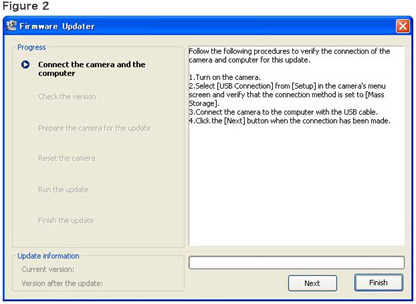

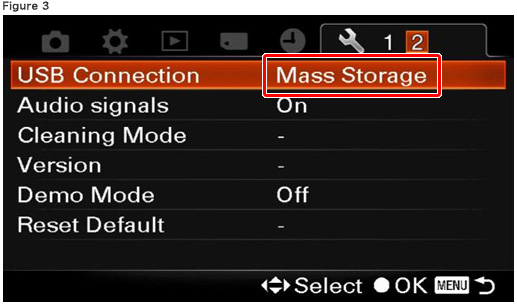
According to the instruction on Firmware Updater, select [Menu] - [Setup] - [USB Connection] on the camera, and check if [Mass Storage] is selected (Figure 3).
If the mode other than [Mass Storage] is selected, please select [Mass Storage].

 |
 |
 |
|
|
 |
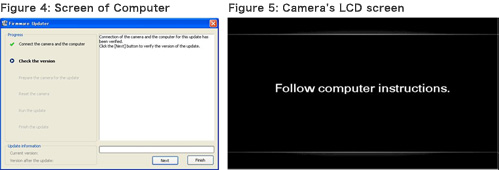
When the camera is connected to the computer, the LCD screen of the camera turns off. Please proceed to the next step. | |
 |
|
 |
|
 is displayed in the tasktray in your computer lower right of the screen.
|
|
|
|
|
|
From now on, never turn off the camera until the firmware upgrade is completed. | |
|
|
|
|

|
|
|
|
|
|
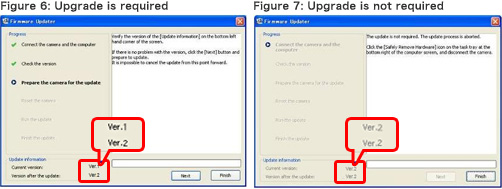
If the screen on Figure 7 appears, the upgrade is not required. According to the message, stop the USB connection and click [Finish]. Turn off the camera, remove the battery pack or the AC adaptor, and then turn on the camera again. | |
|
|
|
|
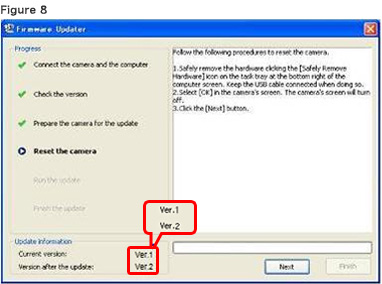
 on the task tray at the lower right corner of the computer screen to stop the USB connection.
 |
|
|
|
|
|
Please keep the USB cable connected even after stopping the USB connection on the computer with the above operation. | |
|
|
|
|
|
|
|
|
|
|
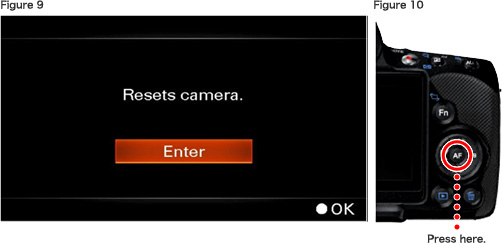
The screen turns off when the soft key is pressed. Please proceed to the next step. | |
|
|
|
|

|
|
|
|
|
|
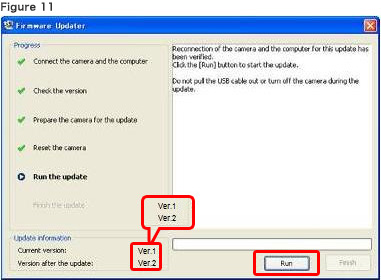
Never turn off the camera nor disconnect the USB cable while upgrading. |
|
|
|
|
|

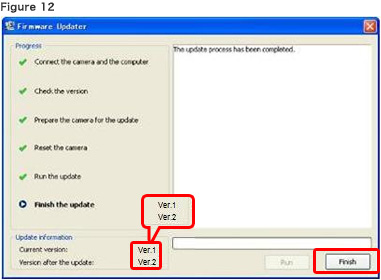
When the upgrade is completed, the screen on Figure 12 appears.
Click [Finish] and disconnect the USB cable.
|
|
|
|
|
|
Turn off the camera, remove the battery pack or the AC adaptor, and then turn on the camera again. | |
|
|
|
|

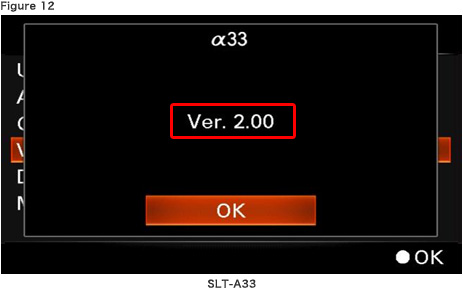
Follow the instruction below to confirm the firmware version is Ver.2.00.
Select [Menu] - [Setup] - [Version] on the camera.
The firmware version is displayed (Figure 13).